
Documentation
Installation Guide
Install the VFX Loom Local Plugin, open it in Roblox Studio, and choose the right access path.
This is the shortest path from a fresh download to a working VFX Loom installation. Keep the two activation paths separate: Paid customers use a Setup Code, while Founders use a Founder Access Code.
Step 1 — Download VFX Loom
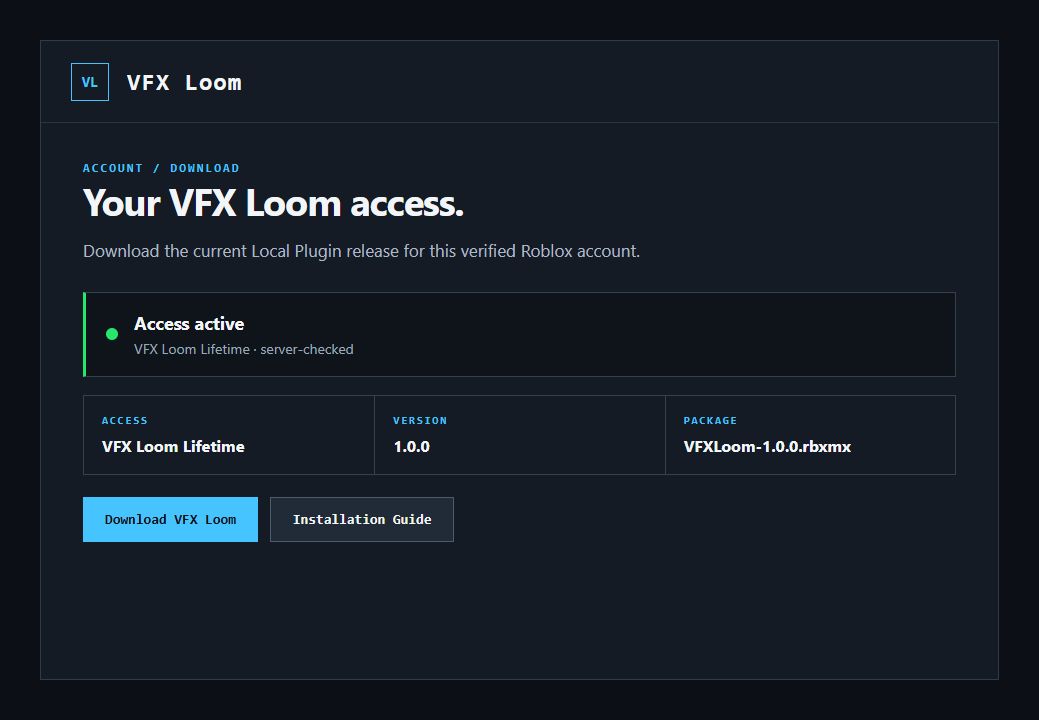
Open your VFX Loom Account, sign in with Roblox, and choose
Download VFX Loom. The current package is named
VFXLoom-1.0.0.rbxmx.
Step 2 — Install the Local Plugin
Open Roblox Studio and a place. Drag VFXLoom-1.0.0.rbxmx into the place,
select the VFX Loom root, then choose Plugins → Save as Local Plugin.
Do not choose Publish as Plugin. VFX Loom is installed locally from the
.rbxmx package.
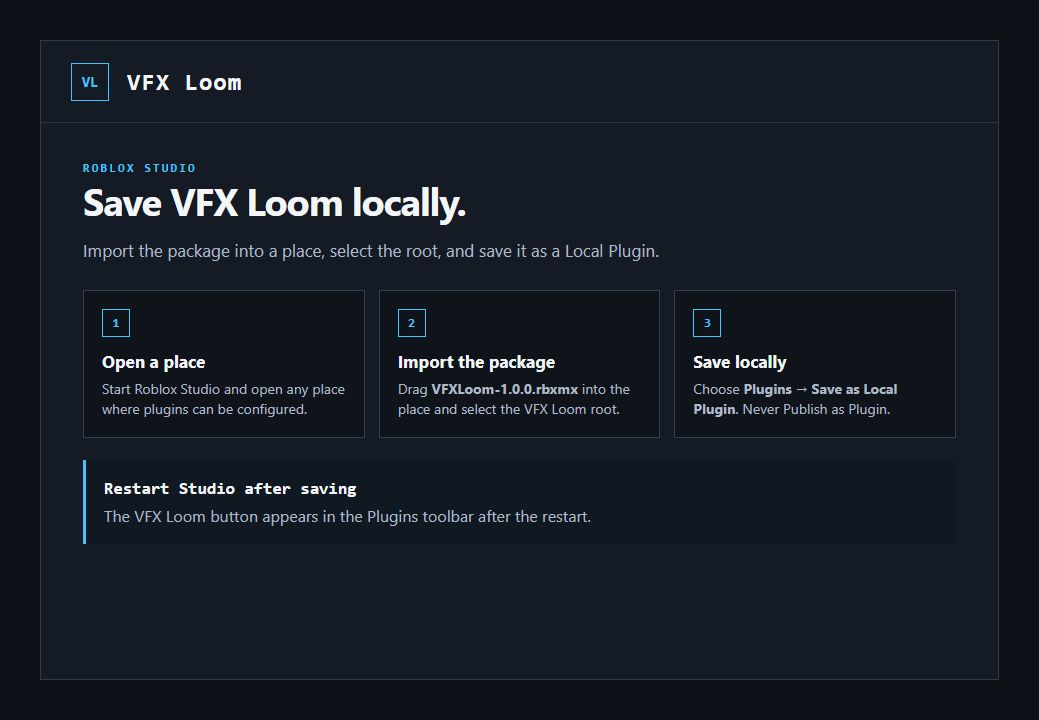
Restart Studio after saving so the new Local Plugin is loaded.
Step 3 — Open VFX Loom
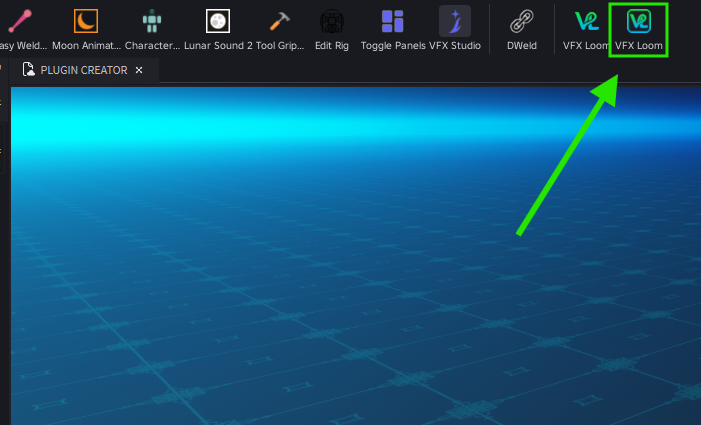
In Roblox Studio, open the Plugins tab and click VFX Loom in the toolbar.
Step 4 — Choose your access path
Choose one path below. You do not need to understand the internal access system to complete setup.
PAID CUSTOMER
Setup Code
Use the code shown by the plugin to connect this installation to the Roblox account that purchased VFX Loom.
PLUGIN → WEBSITE
FOUNDER
Founder Access Code
Generate a code from Founder Access, then enter it in the installed plugin.
WEBSITE → PLUGIN
Paid customer
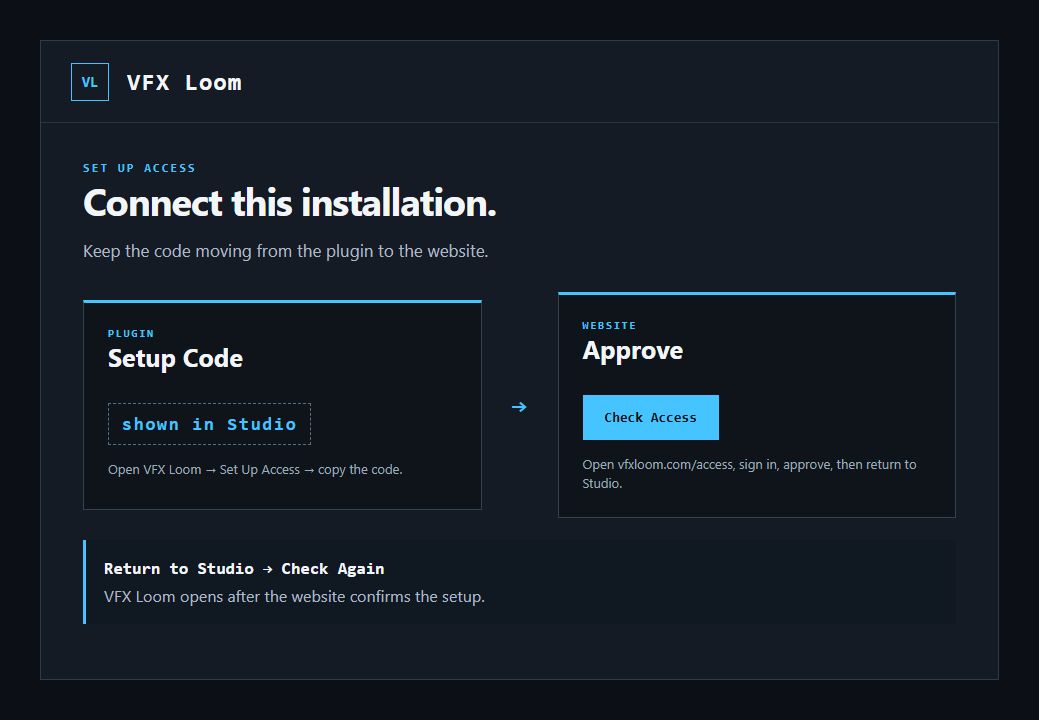
- Open VFX Loom and choose Set Up Access.
- Copy the Setup Code shown by the plugin.
- Open VFX Loom Access and sign in with Roblox.
- Enter the Setup Code and approve the installation.
- Return to Studio and click Check Again. VFX Loom opens after the setup is confirmed.
Founder
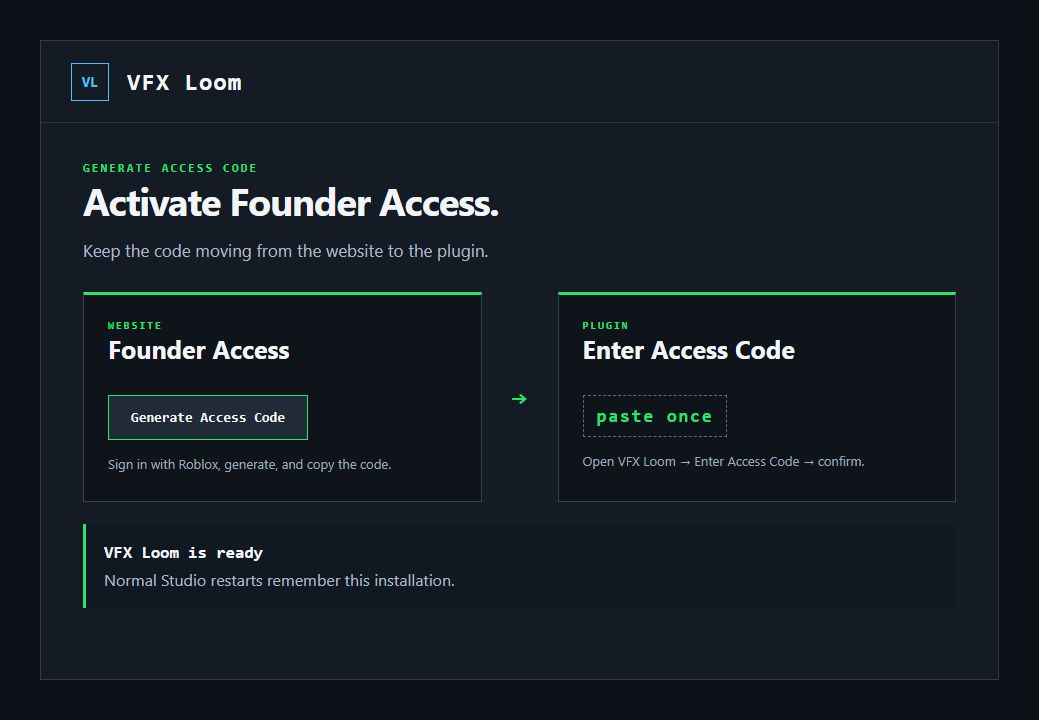
- Open Founder Access and sign in with Roblox.
- Choose Generate Access Code and copy the code shown once.
- Open VFX Loom in Studio and choose Enter Access Code.
- Paste the code and confirm. VFX Loom opens after the code is accepted.
You’re ready
After successful activation, VFX Loom remembers this installation. You should not normally need to activate again every time Roblox Studio opens.
If you install VFX Loom on another computer or need to restore access, return to your VFX Loom Account and start from the current download and installation guide.
If you need help, keep the customer-facing path simple: tell support whether you are using Paid customer → Setup Code or Founder → Founder Access Code, and which step is stopping you.