
Documentation
Image
VFX Loom 1.0 reference for the Image node.
Generators
generator.image 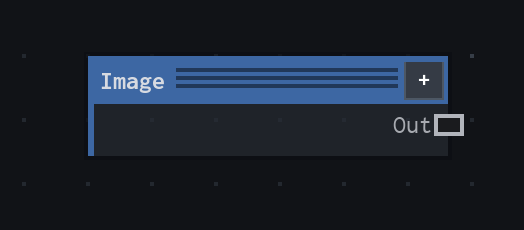
Overview
A Roblox image asset as visual data.
Asset source; loading may be asynchronous. Asset options are presets, not a closed allow-list.
- Category
- Generators
- Internal ID
generator.image- Version
- VFX Loom 1.0
Properties
| Property | Type | Default | Animatable | Range / options | Effect |
|---|---|---|---|---|---|
| Asset | Asset | rbxasset://textures/face.png | Not declared | — | Local control documented by the production node behavior. |
| Fit | Enum | Stretch | Not declared | Stretch · Contain · Cover · Actual Size | Selects the fit behavior; each option changes the operation described in the overview. |
Outputs
| Output | Type | Meaning |
|---|---|---|
| out | Image | The production node output described by the overview. |
Usage
In practice
- Use Image as the source for a Roblox texture or image asset. Asset presets are starting points; the control also accepts the documented asset-id and Creator Dashboard URL forms.
- Fit decides how the source is placed in the frame: Stretch fills it, Contain preserves the full image, Cover fills while cropping, and Actual Size keeps the source dimensions.
- Place Transform, Colorize, or Composite after Image when the source needs movement, colour treatment, or layering.
Worked example: Image → Transform → Composite
Bring an asset into the graph, place it, and combine it with another effect branch.
- Choose an Asset and select the Fit policy that matches the artwork.
- Connect Image to Transform for placement or scale changes, then choose an Edges mode appropriate to the source.
- Send the transformed result to Composite and control its layer mode or opacity there.
Notes / limitations
- Asset loading may be asynchronous; the listed presets are not a closed allow-list.